Settings
Introduction
Introduction here
Introduction here
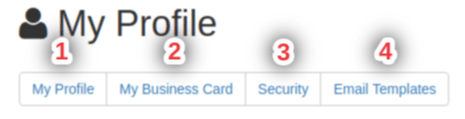
When you go to your profile settings there are four sections: My Profile My Business Card Security Email Templates
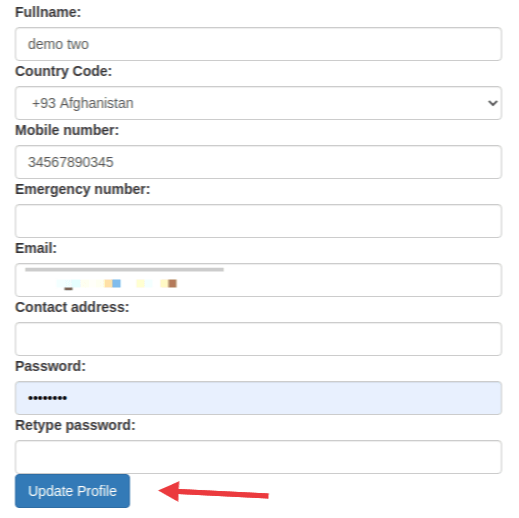
1. Here you can change your details about your account and then you can press the Update Profile to update your profile.
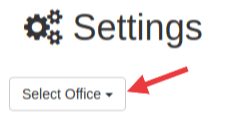
when you go to the settings tab you can fill select your office and then fill out a worksheet.
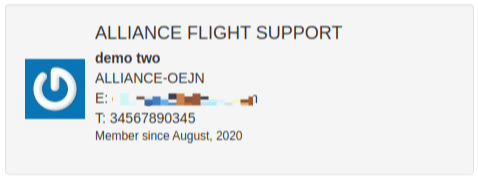
2. This is your automatically generated buisness card from what you have filled out already.
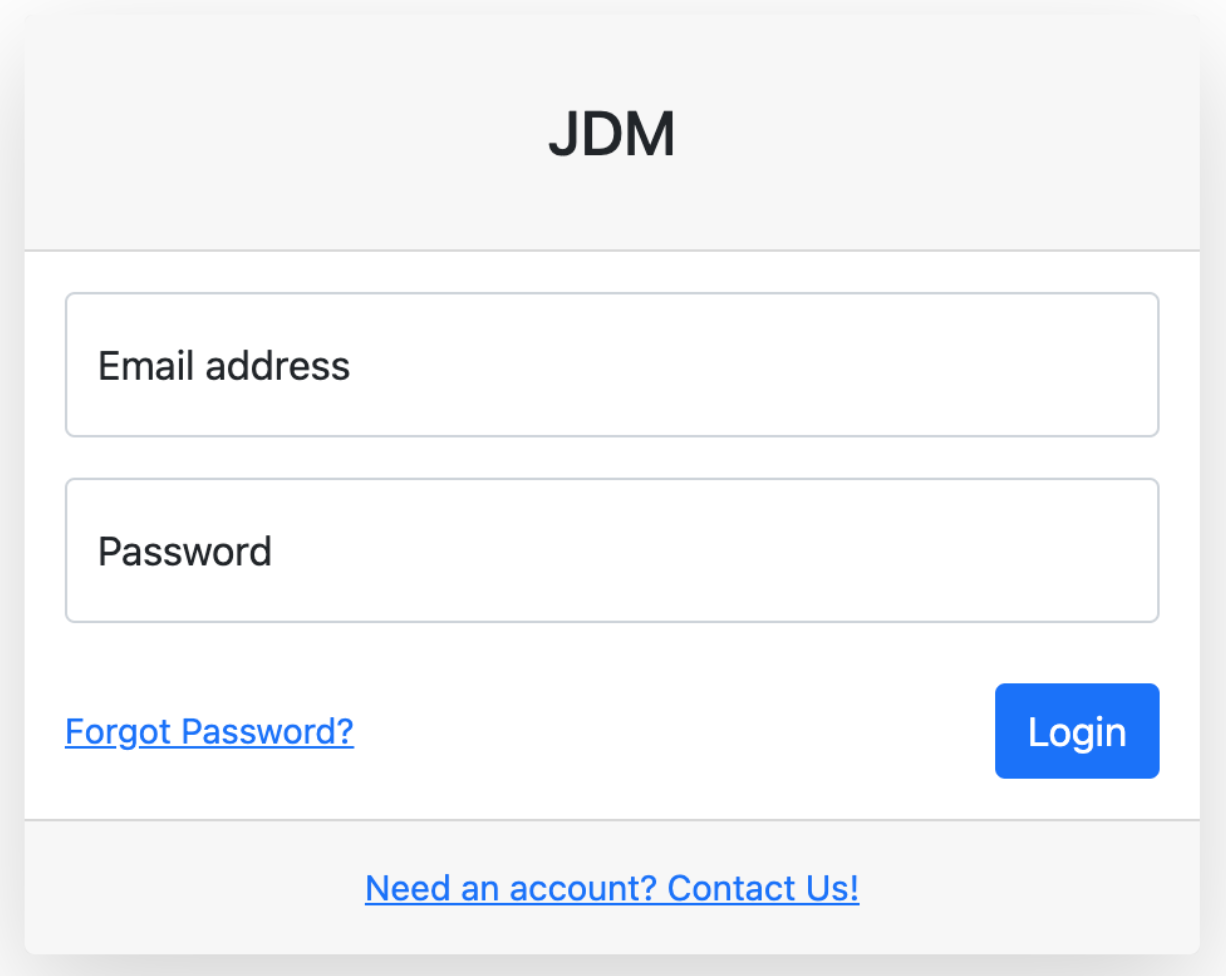
Login to JDM
You will see a message in the Alert drop down about enabling 2FA, click on this link

Make sure your mobile number is entered correctly, if not click on the My Profile link to set it up.
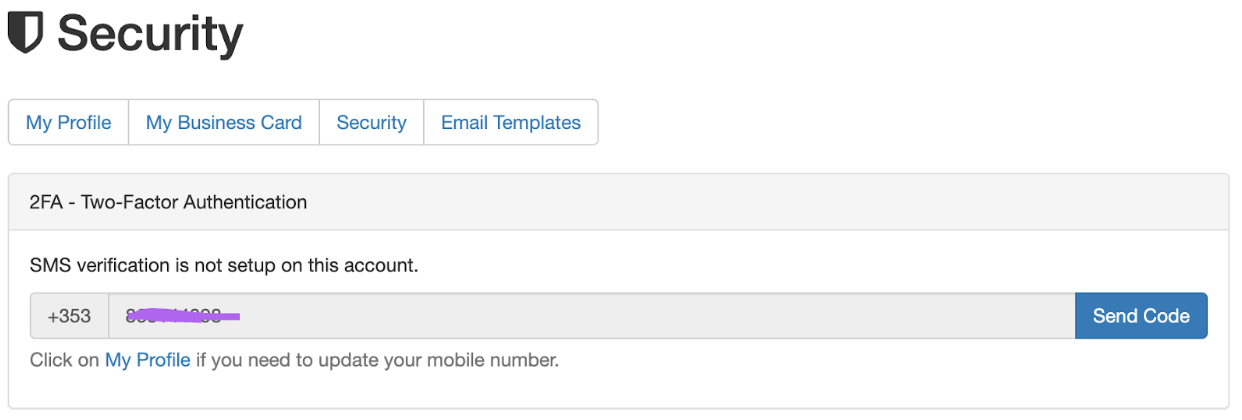
Select the correct country code and enter your mobile number, and click the Update Profile button. When done go back to the Security tab.
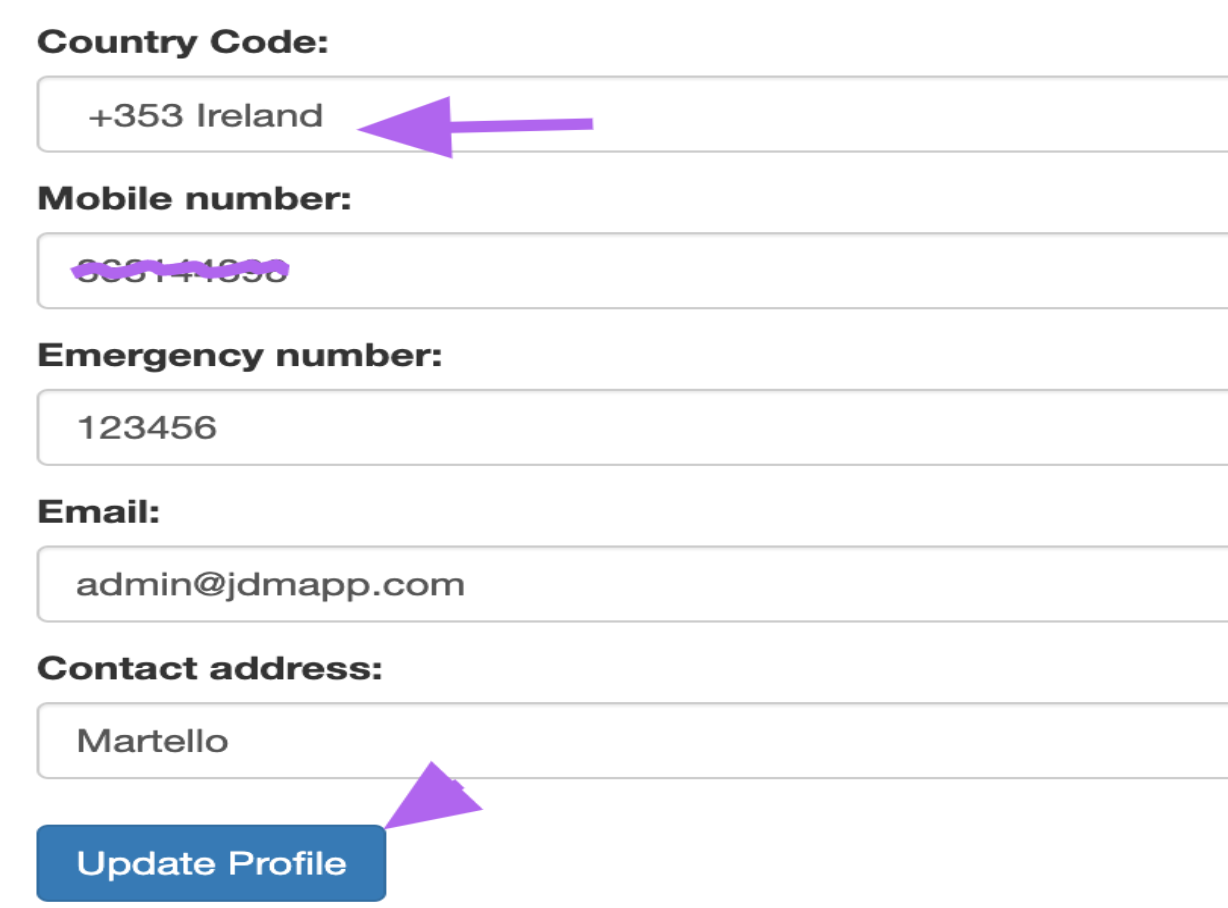
Click on the Send Code button.

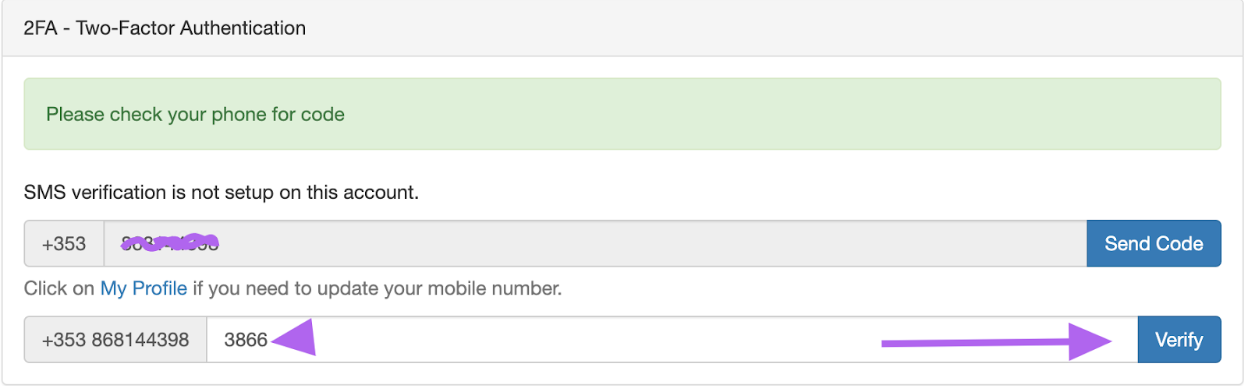
Enter the code you were sent, and click on the Verify button.
You can now download the Authy app, make sure you sign up using the same mobile number as you entered above.
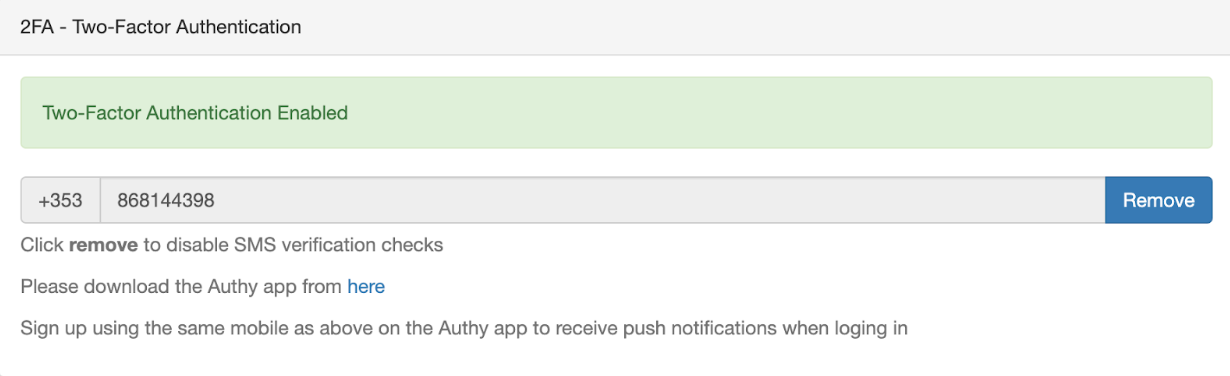
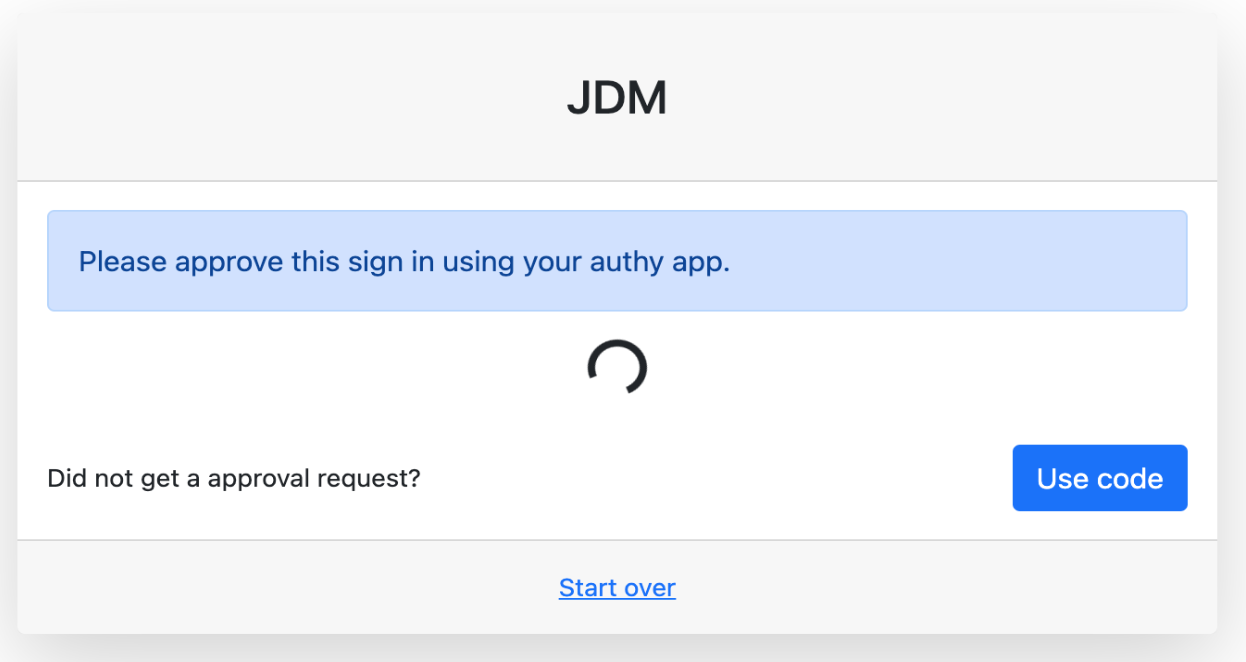
The next time you login you will see a screen like below. We will try and send you a push notification to your mobile device with Authy installed, or you can use the Desktop application also.
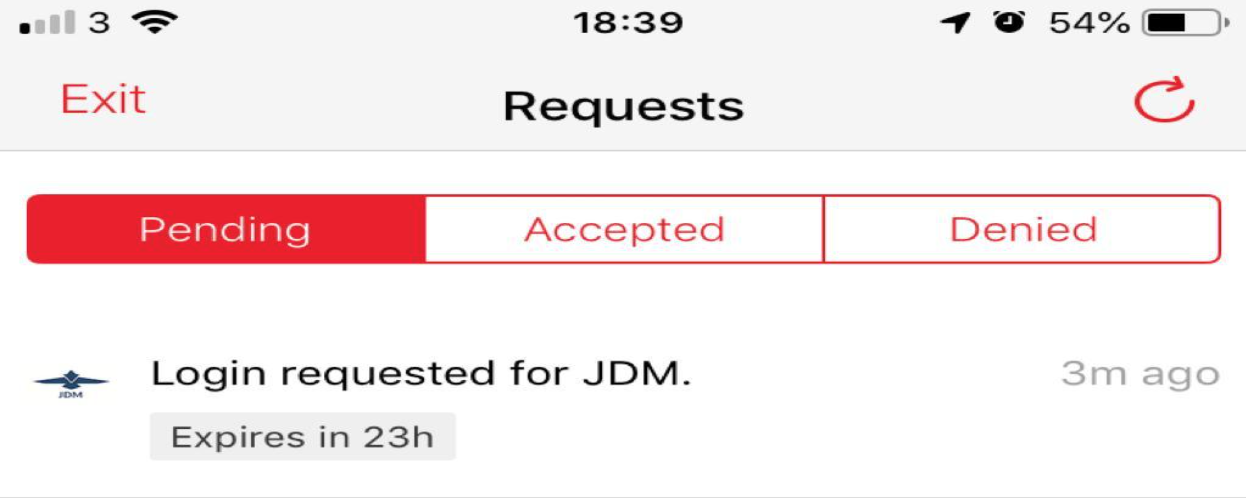
You should see a message like the one below asking you to approve the login.
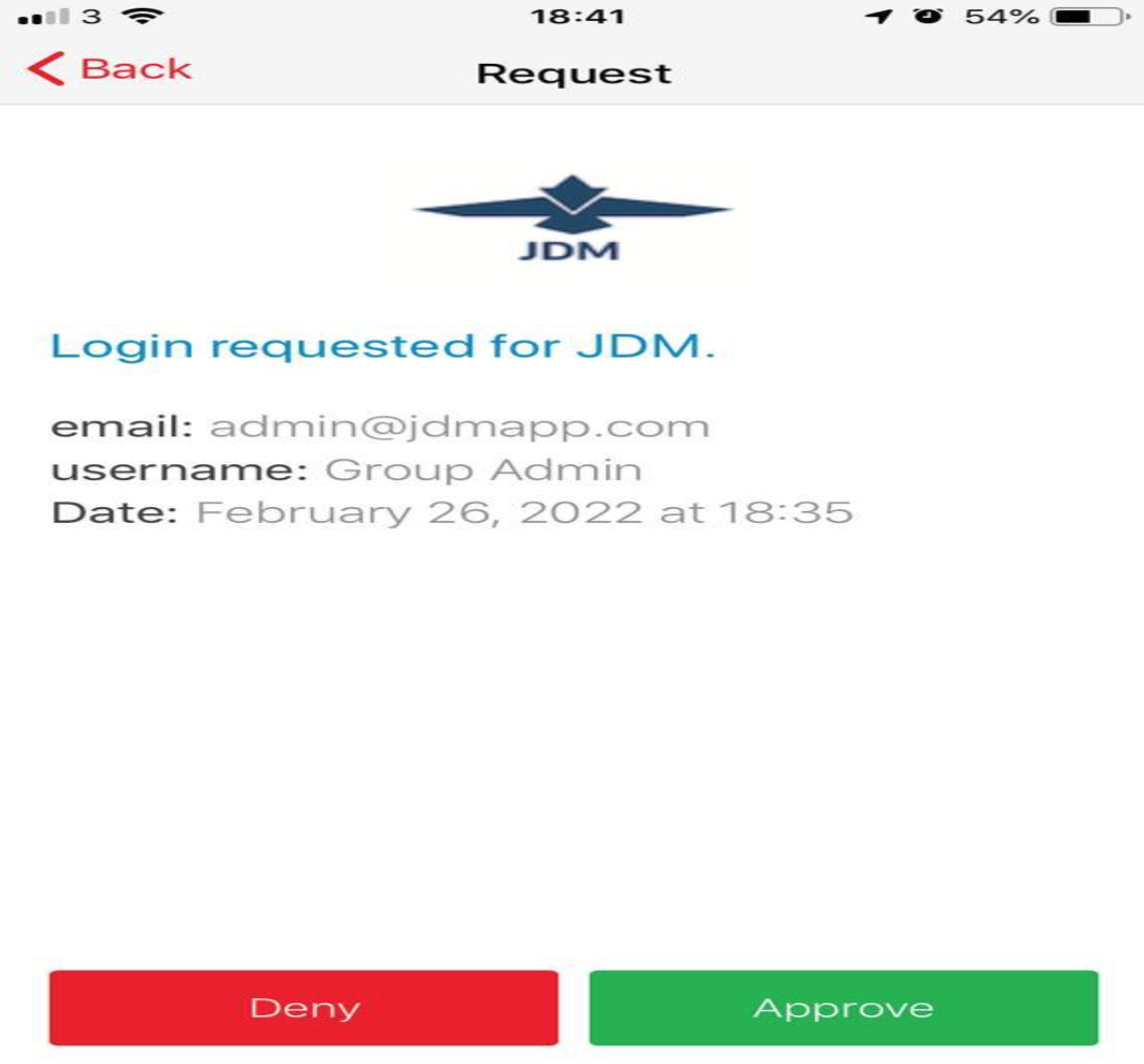
Click on the request and you get a screen like below, click the green Approve button and you will be logged into JDM.
If you don't have the Authy app setup yet, you can request an SMS code. Click the Use Code button and a code will be texted to you.
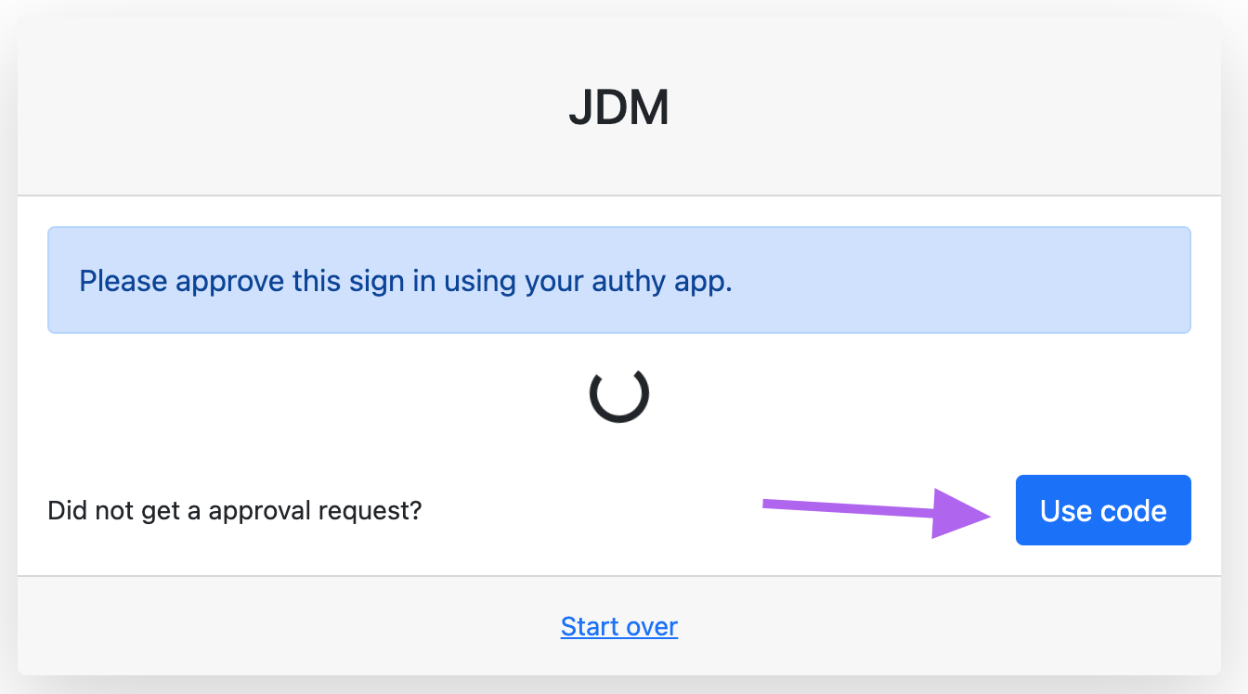
Enter the code OR You can enter the code generated in your Authy Application for JDM.
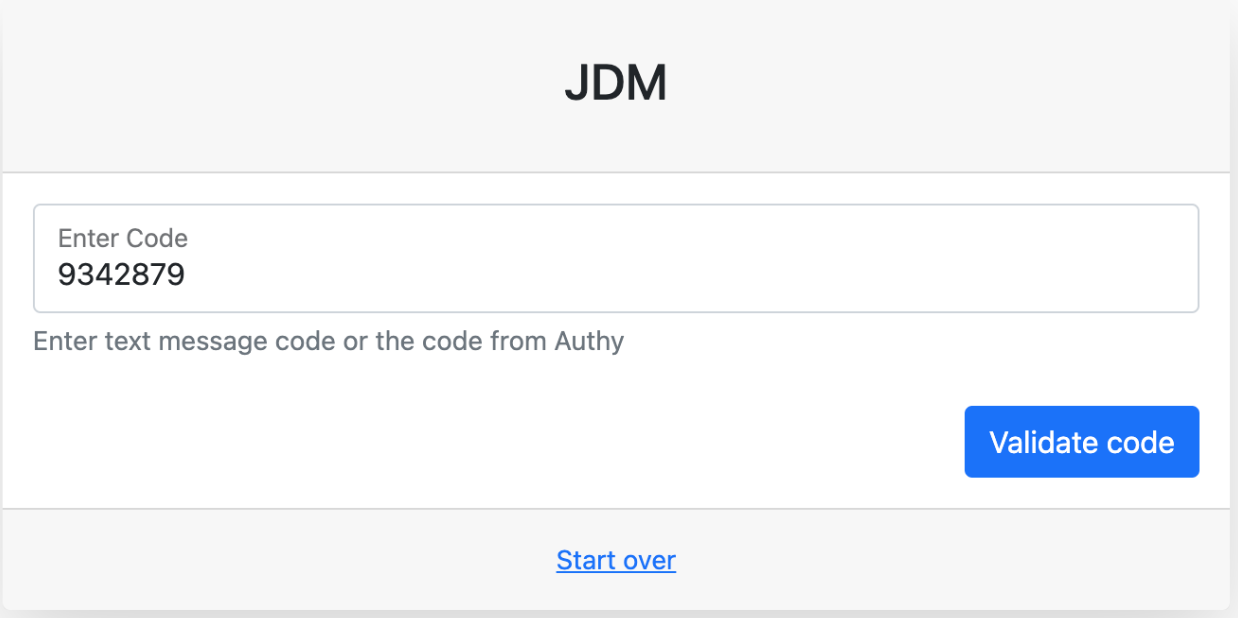
Click the Validate Code button and you will be logged in.
4. Here it shows email templates for you to write your business emails with an automated template.
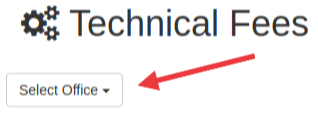
When you choose your office you can fill out your technical fees.
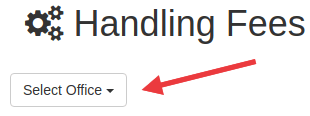
When you choose your office you can fill out your handling fees.
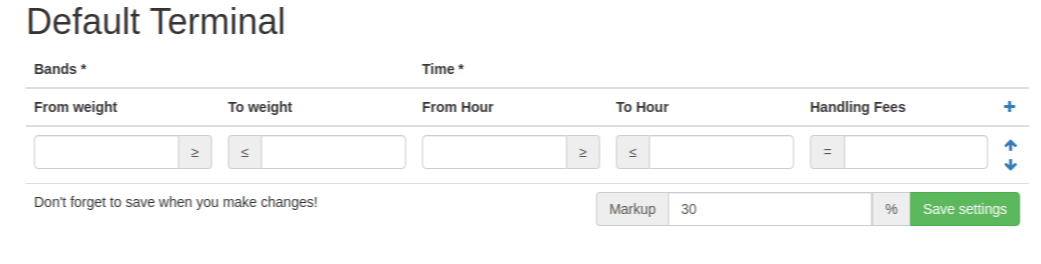
With this you can fill in the boxes to calculate your handling fees and don't forget to save your changes with the Save Settings button.
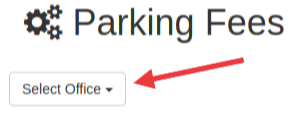
When you choose your office you can fill out your parking fees.
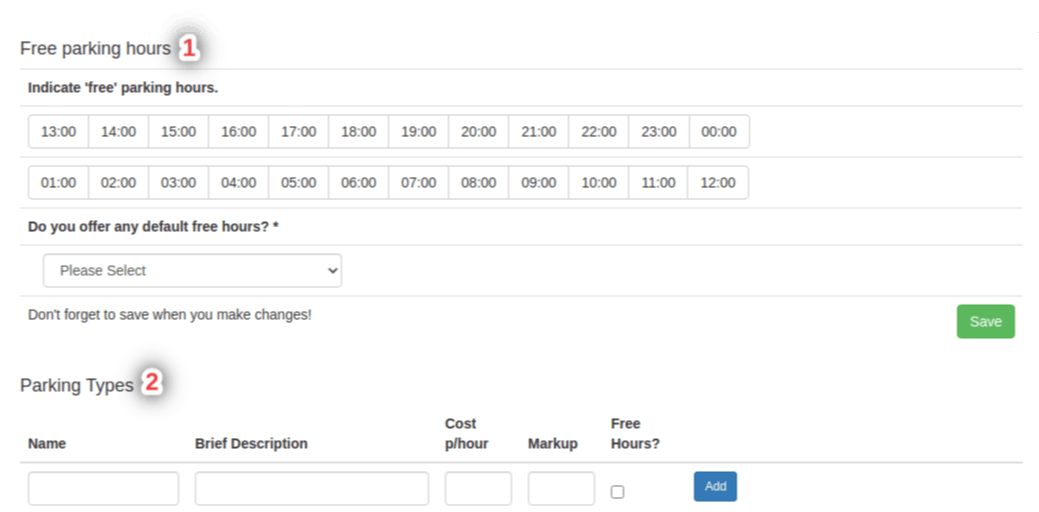
1. You can select the times of free parking for your terminal.
2. You can add parking types by filling out the form and clicking the Add button.
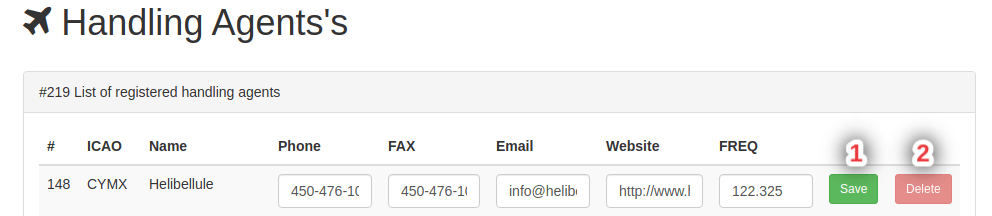
here your can edit / delete your hadling agents 1. after you change some details click this button to save and 2. you can delete some handling agents.
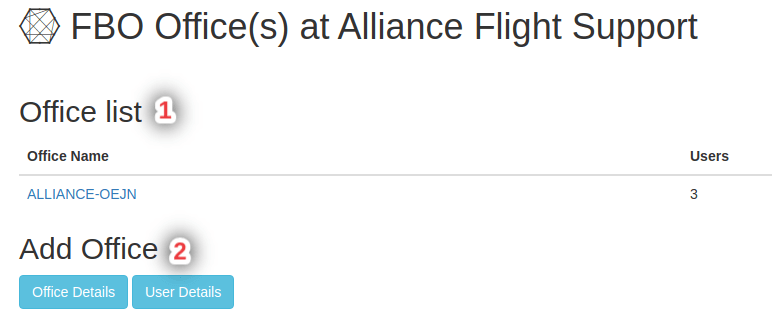
1. Here you can choose from the office list to edit things about your office.
2. And here you can add new offices.

Here you can manage your services for all of your flights.

Here shows all of your checklist items where you can manage them all at once.
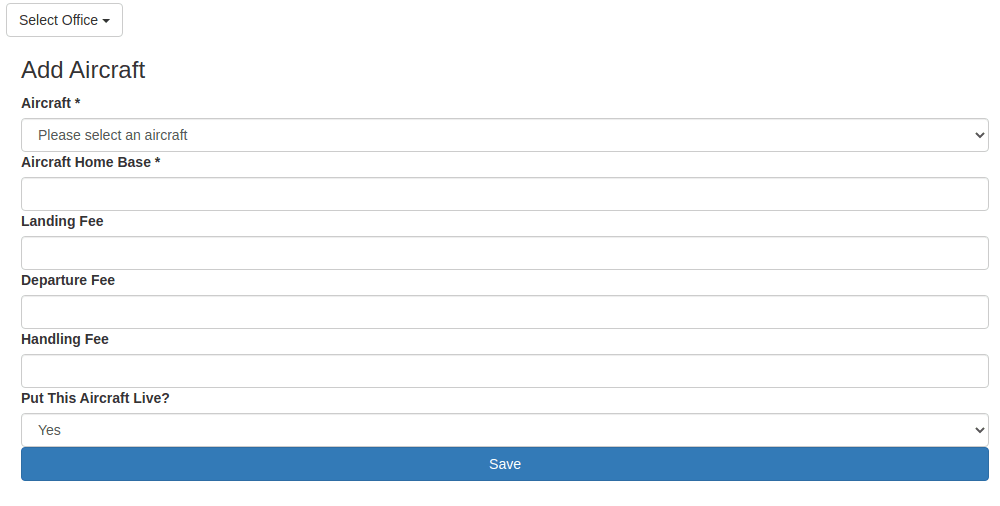
Here you can add aircraft by filling out the form and clicking save

Here you can manage all of your operator checklist items.
Here you can manage the costs for your trips additional operations.
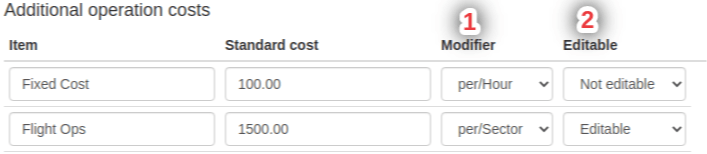
1.For the modifier column you can change the pricing by hour or by sector.
2.For the editable column you can set the item to be able to be edited in the overview or not.